
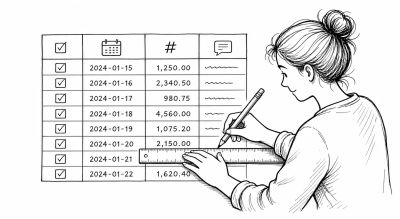
Data format is the foundation of every reliable spreadsheet. Most reporting mistakes happen before formulas, usually when raw data is inconsistent.
This tutorial gives you a practical standard you can apply in Google Sheets, Microsoft Excel, and similar tools.
Spreadsheet Basics
What spreadsheets are and when to use them
A spreadsheet is a grid-based tool for storing, calculating, and analyzing structured data.
Use spreadsheets when you need to:
- Track lists and records (sales, tasks, inventory)
- Perform repeated calculations
- Summarize data by category or time
- Build lightweight reports and dashboards
For very large datasets, high-concurrency systems, or strict transactional workflows, a database is often a better fit.
Row, column, cell, and range concepts
- Row: horizontal line of records (example: one order per row)
- Column: vertical field definition (example:
Order Date,Amount) - Cell: one data point at a row-column intersection (example:
B2) - Range: group of cells (example:
A2:D200)
A good habit is to keep each row as one complete record and each column as one consistent field.
Workbook vs worksheet
- Workbook: the full spreadsheet file
- Worksheet: one tab inside the workbook
Recommended structure:
Raw_Dataworksheet for source inputClean_Dataworksheet for normalized dataAnalysisworksheet for pivots and KPI calculationsDashboardworksheet for final presentation
Use tables for repeatable data
When the data will grow every week or month, store it as one continuous table instead of a loose grid.
In Excel, this usually means converting the range into an official Table with Ctrl + T.
Benefits:
- New rows inherit formulas and formatting automatically
- Filters and sorting stay attached to the full dataset
- Structured references are easier to review than random cell ranges
- Pivots and charts are less likely to miss newly added rows
For repeated operational data, think in terms of one clean transaction table first.
Stage 1: Understand Data Format Basics
Why data format matters
Good formatting helps you:
- Keep formulas accurate
- Prevent broken lookups and pivots
- Avoid chart errors
- Make team collaboration easier
Poor formatting often causes silent errors that look correct at first glance.
Standard data types you should use
Use one clear type per column:
- Text: names, IDs with letters, status labels
- Number: quantities, scores, units
- Currency: money values displayed with a currency format
- Percentage: ratios shown as percent
- Date or DateTime: events, deadlines, timestamps
- Boolean:
TRUEorFALSE
Stage 2: Apply Column-Level Rules
Date format best practice
Use YYYY-MM-DD for storage and import/export consistency.
Example:
- Good:
2026-05-26 - Risky:
05/06/26(ambiguous across locales)
Number and currency rules
- Keep raw values numeric (do not type currency symbols into raw cells)
- Use cell formatting to display
USD,IDR,%, or decimals - Use one separator style per file
Text consistency rules
- Remove leading and trailing spaces
- Keep category spelling and case consistent
- Standardize codes (
INV-001,INV-002, ...)
Design repeated data with simple relationships
Repeated data becomes easier to manage when you separate:
- Transaction table: one row per order, task, or event
- Master table: one row per product, customer, staff member, or status option
Example:
Sales_TransactionsstoresOrder ID,Order Date,Customer ID,Product SKU,QtyProductsstoresProduct SKU,Product Name,Category,Standard PriceCustomersstoresCustomer ID,Customer Name,Region
This is a simple spreadsheet relationship pattern:
- One customer can appear in many transaction rows
- One product can appear in many transaction rows
- The transaction table should store the key, not repeat every descriptive field manually
That structure reduces typing, lowers inconsistency, and makes lookups much more reliable.
Stage 3: Validate Inputs Early
Input validation checklist
- Dropdown lists for controlled categories
- Date range limits for date columns
- Min/max checks for numeric fields
- Required fields for critical columns
Best use of dropdown lists
Use dropdowns for fields with repeated allowed values such as:
- Status
- Department
- Region
- Category
- Assigned owner
Best practice:
- Keep the allowed values in a small lookup sheet like
Lists - Use that list as the source for data validation
- Update the list in one place instead of editing many sheets manually
This turns dropdowns into a lightweight control system for repeated data.
Validation prevents bad data before it spreads into reports.
Stage 4: Use a Clean Workflow (Raw to Report)
Recommended workflow
- Capture raw data in a dedicated
Raw_Datasheet - Store repeated records in a clean table structure
- Separate lookup or master tables for repeated labels
- Clean and normalize in a
Clean_Datasheet - Build pivots/charts in an
Analysissheet - Present metrics in a
Dashboardsheet
Important rule
Do not mix raw input and dashboard visuals in the same table.
Also do not mix transaction rows and master-list maintenance in the same working area.
Stage 5: Avoid Common Data Format Mistakes
Watch for these issues:
- Numbers stored as text
- Mixed date formats in one column
- Merged cells inside datasets
- Blank rows inside active tables
- Hardcoded totals in data rows
- Repeating product names, customer names, or status labels manually in every place
- Building dropdown options directly inside formulas instead of from a maintained list
Quick Audit Before Sharing
Run this 60-second check:
- Does each column have one data type?
- Are all dates in one consistent format?
- Are numeric fields truly numeric?
- Are validation rules enabled for key inputs?
- Are repeated values controlled by master lists or dropdowns?
- Is reporting separated from raw data?
If all five are yes, your spreadsheet is usually analysis-ready.
What to Learn Next
After format fundamentals, continue with:
- Formula references (
A1vs$A$1) - Lookup functions (
XLOOKUP,INDEX+MATCH) - Pivot table summary workflow
- Chart design best practices