
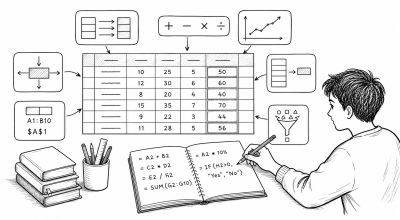
Formulas are where spreadsheet logic lives. If data format is clean, formulas become easier to write, test, and maintain.
This guide is Stage 2 in the spreadsheet workflow and focuses on dependable formula habits.
Stage 1: Master Cell References
Relative references
A1 changes when copied to another row or column.
Use this for repeating calculations across tables.
Absolute references
$A$1 stays fixed when copied.
Use this for constants, tax rates, thresholds, and lookup anchors.
Mixed references
$A1: lock column onlyA$1: lock row only
Use mixed references when building reusable matrix formulas.
Stage 2: Build Core Calculation Patterns
Start with these formula families:
- Aggregation:
SUM,AVERAGE,COUNT,MIN,MAX - Conditional totals:
SUMIF,SUMIFS,COUNTIF,COUNTIFS - Logic:
IF,IFS,AND,OR
Example:
=IF(E2>=80,"Pass","Review")
Stage 3: Learn Lookup Workflow
Before writing the formula, define the relationship clearly:
- Transaction table holds the repeating activity rows
- Master table holds the descriptive reference data
- A shared key connects them, such as
Product SKU,Customer ID, orOwner ID
This is how spreadsheets manage repeated data without retyping the same labels everywhere.
Preferred lookup
Use XLOOKUP when available.
=XLOOKUP(A2, Products!A:A, Products!C:C, "Not found")
Example logic:
A2contains theProduct SKUfrom the transaction tableProducts!A:Ais the key column in the master tableProducts!C:Creturns the category, price, or other related field
Compatible fallback
Use INDEX + MATCH for broader compatibility.
=INDEX(Products!C:C, MATCH(A2, Products!A:A, 0))
Legacy option
VLOOKUP can work, but is less flexible when table structures change.
Stage 4: Handle Errors Intentionally
Use IFERROR around formulas that may fail due to missing keys or incomplete input.
=IFERROR(XLOOKUP(A2, Products!A:A, Products!C:C), "")
Keep the fallback meaningful:
""for clean UI"Missing ID"for data quality debugging
Stage 5: Formula Debugging Checklist
When a result looks wrong:
- Confirm data type is correct (number/date/text)
- Check whether reference should be relative or absolute
- Validate lookup key has exact match (spacing, case, hidden chars)
- Test formula in smaller parts
- Add temporary helper columns for inspection
Recommended Best Workflow
Use this order each time:
- Clean and validate raw data
- Separate repeated values into transaction and master tables
- Add simple formulas first
- Add conditional and lookup logic second
- Add error handling third
- Lock and review before sharing
This sequence reduces cascading errors and makes review faster.
Practice Mini Tasks
- Create a pass/fail status with
IF - Sum sales by region with
SUMIFS - Pull price by SKU with
XLOOKUP - Wrap each with
IFERRORwhere needed
Next Stage
Continue to Stage 3: analysis workflow with pivot tables and summary metrics.