
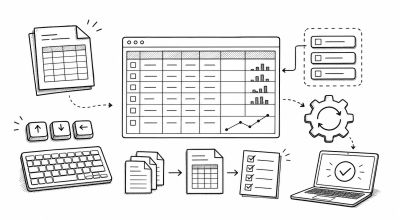
Productivity in spreadsheets is not only about moving faster. It is about reducing repeated manual work while keeping the file understandable for the next person.
This module focuses on practical improvements first: named ranges, templates, reusable models, keyboard shortcuts, and a beginner-friendly path into scripts or macros.
Concept: Automate Repetition, Not Confusion
Automation is useful when a task is:
- Repeated often
- Easy to define clearly
- Based on consistent input data
- Risky when done manually
- Time-consuming without adding judgment
Do not automate a messy process too early. Clean the workflow first, then automate the stable parts.
Step 1: Use Named Ranges
Named ranges make formulas easier to read.
Instead of:
=SUM(B2:B100)
You can use:
=SUM(Sales_Total)
Use named ranges for:
- Tax rates
- Target values
- Lookup tables
- Repeated calculation ranges
- Dashboard input controls
Keep names short and descriptive, such as Tax_Rate, Sales_Total, or Product_List.
Step 2: Build Reusable Templates
Templates reduce setup time and improve consistency.
A good spreadsheet template includes:
- Standard worksheet structure
- Header names
- Data validation rules
- Protected formula cells
- Example rows
- Notes for assumptions
Template examples:
- Monthly sales report
- Weekly task tracker
- Inventory update sheet
- Budget planning sheet
Before turning a file into a template, remove private data and leave only realistic examples.
Step 3: Create Reusable Models
A reusable model is a spreadsheet pattern that can be updated with new input.
Good reusable models separate:
- Inputs
- Calculations
- Assumptions
- Outputs
Recommended tabs:
InputsAssumptionsCalculationsSummaryDashboard
This structure helps people update the file without accidentally editing formulas.
Step 4: Learn Keyboard Shortcuts
Shortcuts save time on repeated actions.
Useful shortcut categories:
- Navigate around cells and sheets
- Select ranges quickly
- Copy formulas down
- Apply formatting
- Open filter menus
- Insert rows or columns
You do not need to memorize everything. Start with the 5 to 10 actions you repeat most.
Step 5: Use Automation Tools Carefully
Scripts and macros are useful for repetitive workflows.
Good automation candidates:
- Importing fresh data
- Cleaning repeated column formats
- Creating a report copy
- Sending a scheduled export
- Applying standard formatting
Keep scripts small and documented. If a teammate cannot understand what the automation changes, the file becomes harder to trust.
Step 6: Add Simple Automation Documentation
Every automated spreadsheet should include a small note section.
Document:
- What the automation does
- Which sheets it changes
- Who owns it
- When it should run
- What to check after it runs
This prevents silent errors when someone else inherits the file.
Practice Task
Create a reusable monthly report template:
- Add sheets named
Inputs,Calculations,Summary, andDashboard - Create a named range for the main data table
- Add dropdown validation for status or category
- Protect formula cells
- Add one note explaining how to update the file next month
- Identify one repeated task that could become a macro or script later
Common Errors
Watch for these:
- Creating named ranges with unclear names
- Building templates that still contain old private data
- Automating before the workflow is stable
- Hiding important logic inside scripts
- Using too many shortcuts before basic accuracy is reliable
- Forgetting to update template notes after changing the file
Quick Audit Checklist
Before using a template or automation:
- Named ranges are clear
- Input cells are separate from formula cells
- Template example data is safe to share
- Validation rules are active
- Automation steps are documented
- Someone else can understand how to update the file
Productivity is at its best when the spreadsheet becomes easier to repeat and easier to trust.