
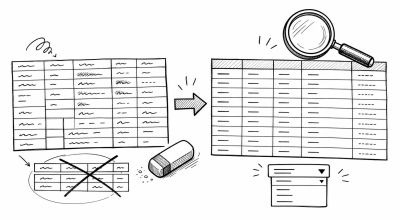
Data cleaning is the bridge between raw input and trustworthy analysis. If the table is messy, formulas and dashboards can look polished while still being wrong.
This module gives you a repeatable workflow for preparing spreadsheet data before analysis.
Concept: Why Data Cleaning Matters
Raw data usually contains small inconsistencies:
- Duplicate rows
- Extra spaces in text
- Mixed category names
- Dates in different formats
- Numbers stored as text
- Multiple values packed into one column
Cleaning turns those inconsistent inputs into a table that formulas, pivots, and charts can understand.
Step 1: Make a Cleaning Copy
Do not clean directly on the only raw dataset.
Recommended sheet structure:
Raw_Data: untouched source dataClean_Data: cleaned working copyAnalysis: pivot tables and metricsDashboard: final presentation
Keep the raw sheet as a reference in case something needs to be checked later.
Step 2: Remove Duplicates Carefully
Duplicates are not always wrong. Some rows may look similar but represent different transactions.
Before removing duplicates:
- Decide which columns define a duplicate
- Check whether IDs, dates, and amounts match
- Keep a note of how many rows were removed
Common duplicate keys:
- Transaction ID
- Email address
- Invoice number
- Combination of date + customer + amount
Step 3: Trim and Clean Text
Text problems often break filters, lookups, and pivots.
Useful cleanup actions:
- Remove leading and trailing spaces
- Standardize case
- Replace inconsistent labels
- Remove invisible characters
Helpful formulas:
=TRIM(A2)
=CLEAN(A2)
Use cleanup formulas in helper columns, then paste values when the result is correct.
Step 4: Split or Merge Columns Intentionally
Split columns when one field contains multiple pieces of information.
Examples:
- Full name into first name and last name
- Address into city and province
- SKU code into product family and variant
Merge columns when you need a stable combined key.
Example:
=A2&"-"&B2
Use consistent separators so combined keys remain readable.
Step 5: Add Validation Rules and Dropdowns
Validation prevents new messy data from entering the file.
Use validation for:
- Status fields
- Category fields
- Date ranges
- Numeric limits
- Required input fields
Example status list:
OpenIn ProgressDoneBlocked
Dropdowns are especially helpful when multiple people edit the same spreadsheet.
Step 6: Separate Repeated Data into Master Tables
If the same product, customer, department, or status appears again and again, do not manage it as free text everywhere.
Split repeated data into:
- Transaction table: the activity rows
- Lookup or master table: the approved repeated values
Example layout:
Sales_Transactions:Order ID,Date,Customer ID,Product SKU,QtyProducts:Product SKU,Product Name,Category,PriceCustomers:Customer ID,Customer Name,RegionLists: status options, team names, or category options for dropdowns
Why this matters:
- You update product names in one place
- Dropdowns stay aligned with a controlled list
- Lookups become more stable
- Reports group repeated values more cleanly
This is the spreadsheet version of a simple one-to-many relationship.
Step 7: Standardize Naming Rules
Consistent names make reports easier to group and filter.
Set rules for:
- Column headers
- Category labels
- Product names
- Region names
- Owner names
Good header examples:
Order DateCustomer NameTotal AmountPayment Status
Avoid vague headers like Data, Info, Value, or Notes 2 unless the meaning is documented.
Practice Task
Download the sample CSV from /assets/data/spreadsheet-sample-sales.csv, then intentionally create or identify these issues for practice:
- Duplicate rows
- Extra spaces in customer names
- Mixed status labels like
done,Done, andDONE - Full names in one column
- Blank required fields
Then complete these tasks:
- Copy raw data into
Clean_Data - Remove confirmed duplicates
- Clean spacing with
TRIM - Standardize status labels
- Split full names into two columns
- Add dropdown validation for status
- Move repeated category options into a small lookup list
- Check that the cleaned table has no blank required fields
Common Errors
Watch for these:
- Removing duplicates without checking the right key
- Cleaning raw data without keeping a backup
- Replacing text too broadly
- Mixing formulas and manual edits in the same helper column
- Creating dropdown options that do not match existing category names
- Repeating descriptive labels manually instead of using IDs or lookup keys
- Forgetting to paste cleaned helper columns as values when needed
Quick Audit Checklist
Before analysis, confirm:
- Raw data is preserved
- Duplicate rules are documented
- Text fields are trimmed and standardized
- Dates and numbers use consistent formats
- Dropdowns exist for repeated categories
- Repeated entities are managed through lookup tables where appropriate
- Required fields are complete
Once this checklist is complete, your data is ready for formulas, pivots, and dashboards.